
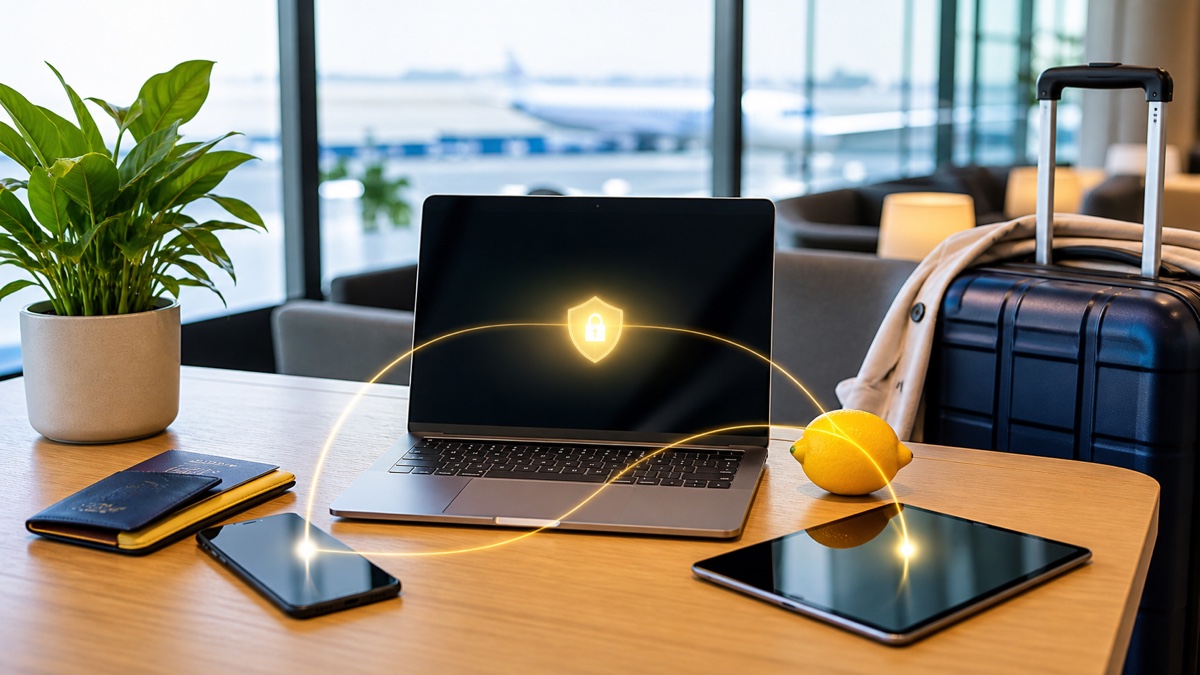
A multi-device security checklist for remote work: updates, backups, public networks, Falemon setup, device loss, and post-trip cleanup.
Travel security is more than turning on a VPN at the airport. Outdated software, auto-join, excessive account privileges, untested backups, public charging, lost devices, and temporary settings that remain after the trip create avoidable risk. Manage the laptop, phone, and tablet as one set of assets with a consistent plan.
Information reviewed: 2026-09-01
Update, back up, and minimize before departure
On a trusted network, update the operating system, browser, Falemon, and work apps. Verify that every device can sign in and store recovery codes safely. Back up important files and perform a test restore; keep only trip-essential data on travel devices.
Enable screen lock, storage encryption, device finding, and multi-factor authentication. Remove unused accounts and browser extensions. Record device models and serial numbers, but keep passwords separate from the devices.
Restart after updates and complete a real sign-in Test that backups restore rather than trusting an upload icon Minimize local sensitive data and unnecessary administrator rights
Give every device the same connection routine
Install the correct client from the Falemon website and test sign-in, node switching, sleep/wake, and Wi-Fi-to-hotspot changes at home. Do not make departure day the first time you install the app or search for an authentication code.
Decide which work must always use the secure route and which local services genuinely need split routing. Keep rules simple and test them before travel; a wrong rule can send an app over the wrong path or trigger account-location alerts.
Test the laptop, phone, and tablet individually Prepare two stable nodes for commonly used regions Document why each split-routing rule exists
Control risk at airports, hotels, and client sites
Confirm the Wi-Fi name with staff, disable auto-join and sharing, complete the captive portal, and then connect Falemon. Prefer a personal hotspot for sensitive work, and never sign into company, email, or password-manager accounts on a shared computer.
Protect against shoulder surfing and unattended devices. Prefer your own power adapter and an electrical outlet over an unknown USB port or storage device. Lock the screen whenever you step away and keep devices out of checked luggage and unattended vehicles.
Verify the network name and use a Public network profile Move sensitive work to a personal hotspot Carry your own charger and reject unknown USB devices
Respond to loss and clean up after returning
If a device disappears, use another trusted device to lock or wipe it, revoke email, cloud, and corporate sessions, and notify the organization. Protect accounts before prioritizing physical recovery.
After the trip, remove saved visitor Wi-Fi, temporary accounts, and travel-only routing rules. Review sign-in history, rotate any credential that may have been exposed, and restore the normal security policy. Preserve a timeline for certificate warnings, strange redirects, or unexpected verification prompts.
Revoke sessions and device tokens promptly Remove travel networks and temporary rules Review sign-ins and report unusual events
Frequently asked questions
Should a work laptop go in checked baggage?
Generally no. Checked luggage can be lost, delayed, or left outside your control. Carry devices and recovery media with you while following airline and organizational policy.
How do I keep multiple devices consistent?
Use the same supported client generation, name devices clearly, follow one network checklist, and sign out sessions for devices you no longer use.
Should I use split routing while travelling?
Only when you know exactly which apps need the direct route. Mail, cloud documents, remote administration, and corporate data should follow organizational policy, and every rule change needs retesting.
Next steps
References
View the complete troubleshooting library, or organize the information to contact the support team